Architecture, Engineering
& Construction
& Construction

Integrated BIM tools, including Revit, AutoCAD, and Civil 3D
Product Design
& Manufacturing
& Manufacturing

Professional CAD/CAM tools built on Inventor and AutoCAD
Top products
When you first run your software, authentication of your product takes place automatically.
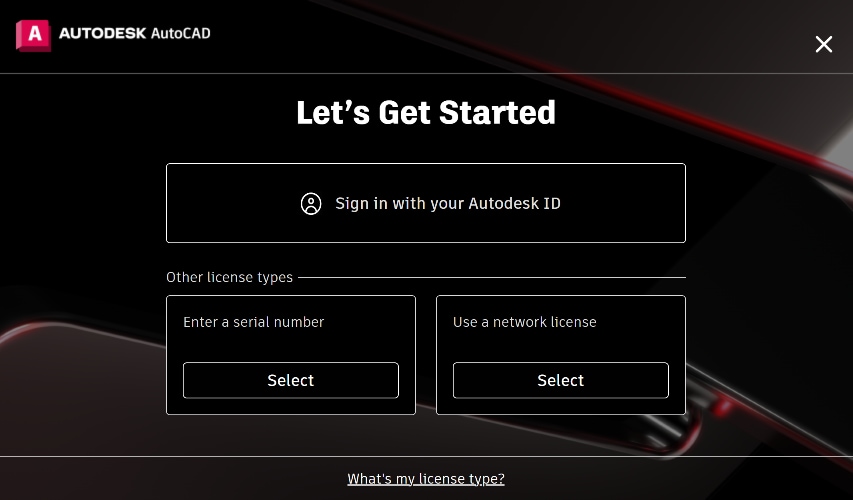
In some cases, the "Let's Get Started" window may be shown displaying three activation methods, "Sign in with your Autodesk ID", "Use a network licence", or "Enter a serial number". The exact wording can vary between product versions
Your activation type depends on the "products licence type", see How to check your Autodesk software licence type (US Site).
Activation types:
Depending on the product version, "Sign in with your Autodesk ID", "Single-user", or "Sign in" option should be selected if the product licence type is an Autodesk subscription licence. The Autodesk subscription licence type requires your "Autodesk ID" and "Password" to complete sign in.
Note: Check that the Autodesk ID you’re using has been assigned to a licence by the contract primary or secondary admin. If no licence is assigned, request an admin to assign your Autodesk ID a product licence. To learn more, see User management overview.
Use a network licence, or Multi-user option should be selected if the product licence type is "Network" or "Multi-user". You may be prompted to input the licence server information.
Enter a serial number option should be selected if you received a serial number with your software. To find your serial number sign into your Autodesk account, go to "Products and Services" tab and click on the tile of your product, then click "Licence Details".
The Assistant can help you find answers or contact an agent.
What level of support do you have?
Different subscription plans provide distinct categories of support. Find out the level of support for your plan.